
The goal: show Klipto's four main workflows on the first screen, let visitors jump to what interests them, and keep the page fast.
Making the demo part of the first screen
I'm Antony, the developer of Klipto, a native privacy-first macOS clipboard app.
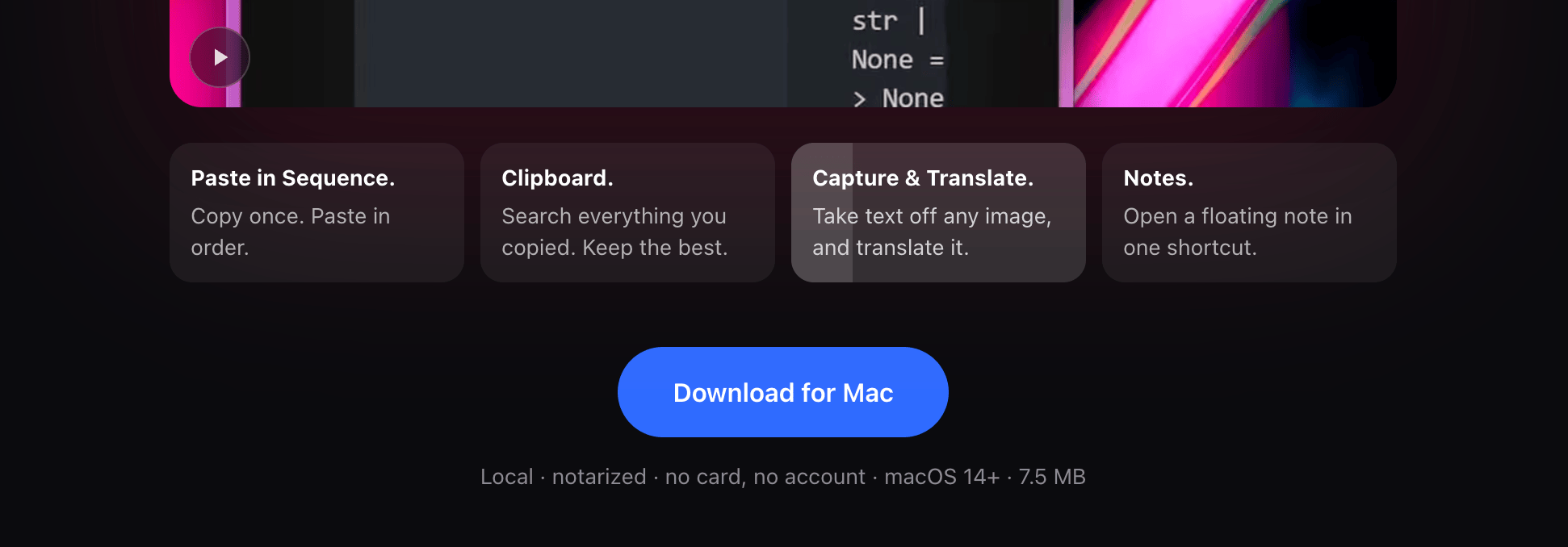
The homepage needed to demonstrate four workflows: pasting copied values into a form in sequence, retrieving clipboard history, capturing and translating text from the screen, and working with notes.
Putting them one after another in a video creates a dependency: to discover the last feature, you have to watch the first three. Spreading them down the page creates another: you have to scroll.
Two findings informed the layout:
- In NN/g's 2018 eye-tracking study, users spent 57% of their page-viewing time above the fold and 74% within the first two screenfuls.
- Wistia's 2026 analysis puts average engagement for videos under a minute at 52%: the average fraction watched, not the percentage of viewers who finish.
Neither is a prediction for this homepage. But they make a poor case for hiding the product's main selling points at the end of a recording or several screens down.
The homepage player: one video, four chapter cards underneath.
Cards that work like YouTube timestamps
The solution is one inline video with four chapter cards beneath it. The cards are visible timestamps: their labels explain the workflows, clicking one seeks to that section, and a progress bar tracks playback within the active chapter. Visitors can scan the capabilities without watching, jump to a relevant feature, or let the whole demo play.
The idea is chunking (Nielsen Norman Group): breaking the demo into smaller, meaningful sections to reduce cognitive load. Combined with familiar YouTube-style timestamps and a progress bar for each chapter, this should feel easier to take in than one long demo in a popup.
Sound follows the same chapter boundaries. Playback starts muted. Clicking “Play with sound” rewinds to the beginning of the current chapter before enabling narration, so the first thing you hear isn't the second half of a sentence.
Building the chapter controller
The site uses Astro and Cloudflare Pages. The player is a native <video> element, present in the HTML so the browser can discover its poster without waiting for the controller to run.
Each chapter button carries its timestamp:
<button data-at="0">Paste in Sequence</button>
<button data-at="17">Clipboard</button>
<button data-at="30">Capture & Translate</button>
<button data-at="43">Notes</button>Seeking is an assignment to currentTime, with one boundary condition: a click can arrive before the video has metadata. The controller highlights the selection immediately and defers the seek until loadedmetadata.
This is the core flow, shortened from the controller; activate() updates the selected card and syncPlay() updates the playback control:
function seek(i) {
  if (v.readyState < 1) {
    v.addEventListener('loadedmetadata', () => seek(i), { once: true });
    activate(i);
    return;
  }

  v.currentTime = marks[i];
  activate(i);
  delete v.dataset.upaused;
  armed = true;
  v.play().catch(() => {});
  syncPlay();
}
An explicit chapter click also lifts a previous user pause. If the browser rejects playback, the play control remains available.
The progress bars use the media clock (like a standard YouTube timestamp), not a CSS animation with a guessed duration. For chapter i, the calculation is:
const start = marks[i];
const end = marks[i + 1] ?? v.duration;
const fraction = (v.currentTime - start) / Math.max(0.001, end - start);
const percent = Math.max(0, Math.min(1, fraction)) * 100;
The controller updates the active chapter and its fill through requestAnimationFrame during playback, stops the loop on pause, and repaints after a seek. Buffering therefore stops the progress bar along with the video, rather than letting the interface get ahead of the recording.
With navigation in place, the next constraint was delivery: a narrated screen recording needed to stay legible without dominating the page's network budget.
Encoding the picture and the sound
The raw export was 2560×1440 and 37.9 MB. For months I shrank it with two free browser tools: ezgif to resize and convert, then mp4compress to squeeze. No signup, no watermark. The result was a 1280×720 file of 2.54 MB, and I was happy with it. That was the baseline for local encoding.
Inspecting the streams exposed the next opportunity:
ffprobe -v error -show_entries stream=codec_name,codec_type,bit_rate \
  -of default=noprint_wrappers=1 compressed.mp4
video: 172 kbps
audio: 133 kbpsAudio accounted for about 43% of the combined stream bitrate. The picture was already heavily compressed, while narration and background music were using nearly as much bandwidth as the video itself.
For this recording, AAC at 80 kbps and Opus at 64 kbps gave an acceptable result. Both encodes below start from the original export, avoiding another lossy pass over the compressed baseline.
H.264 and AAC:
ffmpeg -i source.mp4 -vf scale=1280:720:flags=lanczos \
  -c:v libx264 -crf 28 -preset veryslow \
  -profile:v high -pix_fmt yuv420p \
  -movflags +faststart -c:a aac -b:a 80k out.mp4
VP9 and Opus:
ffmpeg -i source.mp4 -vf scale=1280:720:flags=lanczos \
  -c:v libvpx-vp9 -crf 42 -b:v 0 -row-mt 1 -cpu-used 2 \
-pix_fmt yuv420p -c:a libopus -b:a 64k out.webm| Version | Bytes | Reduction from baseline |
|---|---|---|
| Online resize + compression | 2,538,323 | — |
| H.264 / AAC | 1,899,883 | 25% |
| VP9 / Opus | 1,820,663 | 28% |
These savings reflect changes to both video and audio encoding, not audio alone. Small interface text is the quality check that matters here: a setting that works for a camera shot can make a screen recording unreadable.
The page offers WebM first and MP4 as a fallback. For MP4, +faststart moves the container metadata to the beginning of the file, so playback doesn't depend on retrieving it from the end.
The recording was now about 1.8 MB. First-screen performance still needed work.
Sound that starts at the start of a sentence
Browsers only autoplay muted video. So the demo starts silent, with a "Play with sound" button in the middle of the frame.
The problem shows up the moment someone clicks it. They're 40 seconds in, the narrator is mid-sentence, and the first thing they hear is half a thought.
So the button also rewinds to the beginning of the current chapter. Chapters follow the narration, which means every chapter begins at the start of a sentence. A ten-second rewind is cheaper than a confused visitor. If you're already within 1.5 seconds of the chapter start, playback stays where it is.
It's two lines of code, and probably my favorite detail on the page.
Measuring the first screen: poster, then playback
With a 1.8 MB recording I thought the page was done. I ran Lighthouse on the mobile profile anyway.
Lighthouse, Google's auditing tool in Chrome DevTools, tests page performance under controlled conditions. Its overall score helps compare runs; the individual metrics and resource timings tell you what to change.
The relevant metric here was Largest Contentful Paint (LCP): when the largest eligible image, text block, or video becomes visible in the viewport. It measures the arrival of prominent content, not completion of every download. For video, the poster or first frame can provide that timing.
The initial mobile run reported 4.9 seconds, with the hero video identified as the LCP element.
The poster: 252 KB to 16 KB
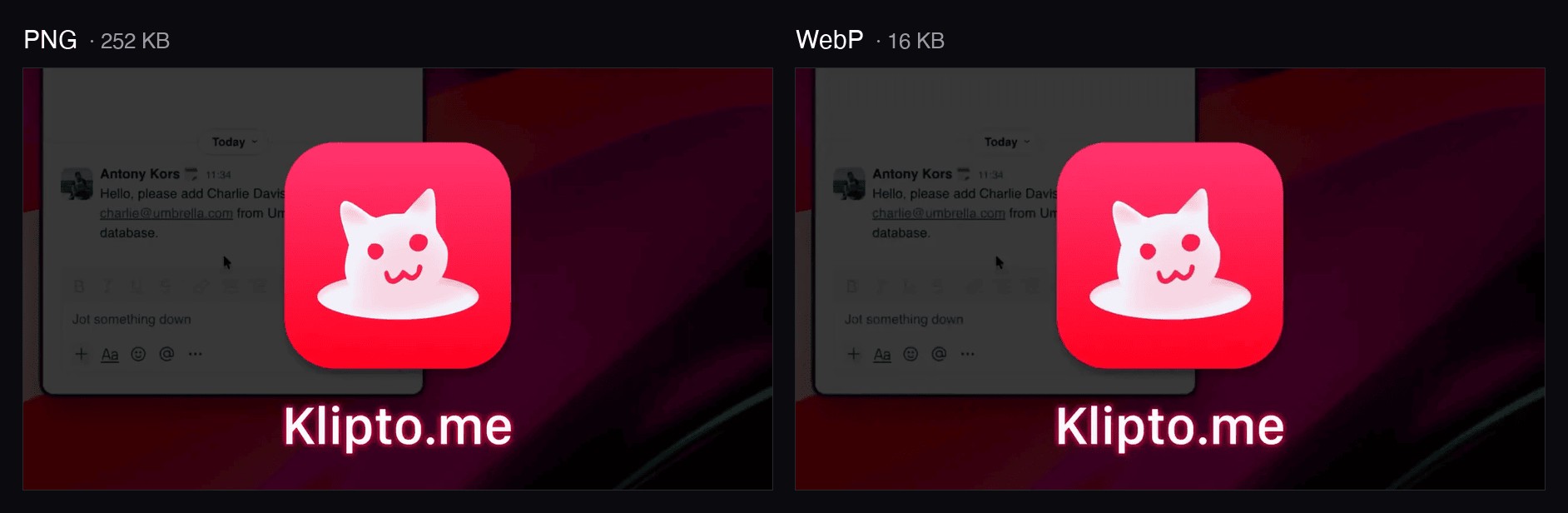
I had compressed a minute of video and left its still frame as a 252 KB PNG. Converting it to WebP reduced it to 16 KB. Since this image is needed immediately, it also gets a high-priority preload:
<link rel="preload" as="image" fetchpriority="high"
      href="/media/overview-poster-2.webp">
The next mobile measurement was 3.7 seconds. A substantial improvement, but it left the playback policy as the next variable to test.
Playback: metadata is not a download limit
The video used preload="metadata", but playback began as soon as the hero entered the viewport—which, on the homepage, meant immediately.
Once playback starts, the browser needs media data regardless of the preload hint.
In one test run it fetched the entire earlier compressed recording, about 2.5 MB. Optimizing the file and controlling when it is requested are separate decisions.
The first change delayed playback until page load. One mobile run reached 2.7 seconds LCP, but video traffic still started without any visitor interaction.
The final approach arms playback on the first pointer movement, touch, scroll, or keypress. Chapter and sound buttons can start it directly. Here is the interaction gate, shortened from the controller:
let armed = false;

function arm() {
  if (armed) return;
  armed = true;
  if (inView && !v.dataset.upaused) {
    v.play().catch(() => {});
  }
}

['pointerdown', 'pointermove', 'touchstart', 'wheel', 'keydown', 'scroll']
  .forEach(event => {
    window.addEventListener(event, arm, { once: true, passive: true });
  });
inView comes from an IntersectionObserver; data-upaused records an explicit user pause. The observer pauses playback outside the viewport and resumes only when playback is armed and the visitor hasn't paused it.
Before interaction, the poster and chapter navigation are usable, while the browser can fetch metadata without being asked to play. This brought measured initial transfer down to roughly 400 KB.
This is deliberately lighter than requiring a Play click: moving the mouse can start the video. An active visitor may therefore trigger the roughly 1.8 MB recording almost immediately. The saving is in the initial load, not in the total bytes required to watch it.
Making chapters addressable from search
The same chapter boundaries can be described to Google using a schema.org VideoObject with nested Clip entries. Google can use these to show “key moments” in video results.
One entry from the video's hasPart array looks like this:
{
  "@type": "Clip",
  "name": "Capture & Translate",
  "startOffset": 30,
  "endOffset": 43,
  "url": "https://klipto.me/?t=30"
}
This is a fragment, not the full schema. The parent VideoObject also needs required fields including name, thumbnailUrl, and uploadDate.
Google requires the chapter URL to use the video's page path with an additional time query parameter; here that's ?t=30. The player must read it, wait for metadata, and set currentTime. JSON-LD alone doesn't implement the seek.
Test that URL in a fresh tab: clicking a chapter button only tests the interface, not the deep link.
Markup doesn't guarantee a search feature. Google's video eligibility rules still apply, including the emphasis on pages whose main purpose is watching a video. A product homepage isn't automatically eligible. Google's documentation covers the requirements and validation tools.
The favicon
One last find. With the video out of the first load, one of the heaviest files left on the page was the favicon. A 512×512 PNG, 121 KB, more than a fifth of everything the page still loaded. Displayed at 16 pixels. It had been sitting there for months, and I would never have noticed it without the report. It's 2.7 KB now.
Results and what they measure
The final asset pass also reduced the favicon from 121 KB to 2.7 KB and compressed other page imagery. Across the changes, the mobile Lighthouse measurements on September 21, 2026 were:
| Measurement | Before | After |
|---|---|---|
| Performance score | 81 | 95 |
| LCP | 4.9 s | About 2.9 s |
| Initial transfer | About 3.1 MB | About 400 KB |
These are lab measurements under Lighthouse's mobile throttling. Runs varied; the best final LCP was 2.3 seconds. The earlier 2.7-second result was a single intermediate run, not a controlled comparison with the final version.
A standard Lighthouse navigation run doesn't interact with the page, so it won't trigger this playback gate. LCP also stops updating after interactions such as a click or scroll. These results describe the initial view; they don't measure playback startup after a chapter click. Nor do they establish a change in video completion or sales—those remain unmeasured.
The result is a demo that also works as the first screen's feature navigation, backed by a smaller recording and a lighter initial page. The useful sequence was to design how visitors enter the video, budget picture and sound separately, and then measure the poster and playback timing as part of the page—not just the media file.
The player is live on Klipto's homepage.
Klipto itself is a clipboard manager for macOS, built by one person in SwiftUI and AppKit, with no Electron. It keeps your whole clipboard history searchable, pastes a copied list into a form field by field, and lets you build your own text transformations out of regex and AI prompts. OCR, translation and the AI run on-device through Apple's frameworks, so what you copy stays on your Mac. No account, no API keys, $19.99 once after a free trial.