
At a glance
- Chips follow the type: detection runs first and decides the set. Colour, link, email, JSON, HTML, CSS, code, number, phone, card, encoded text and plain text each get their own.
- You pick the favourites: every type has a list of switches in Preferences, and only what you switch on reaches the row.
- You set the order: drag the list, and both the row and the ⌘T cycle follow it.
- You can build your own: a named chain of steps, including regex replace, that behaves like any built-in chip.
- They stack: cleanup chips apply on top of each other, format chips replace each other, ⌫ undoes the last one.
- Pro: the chip row is part of the paid tier, with everything unlocked for fourteen days.
Whether chips stack depends on the family. Colour, link, email, JSON, card, phone and number formats are one representation each, so a tap replaces the last. Text cleanups are additive, which is why One-line, No blanks and Collapse can run together, and ⌫ walks back through them one at a time.
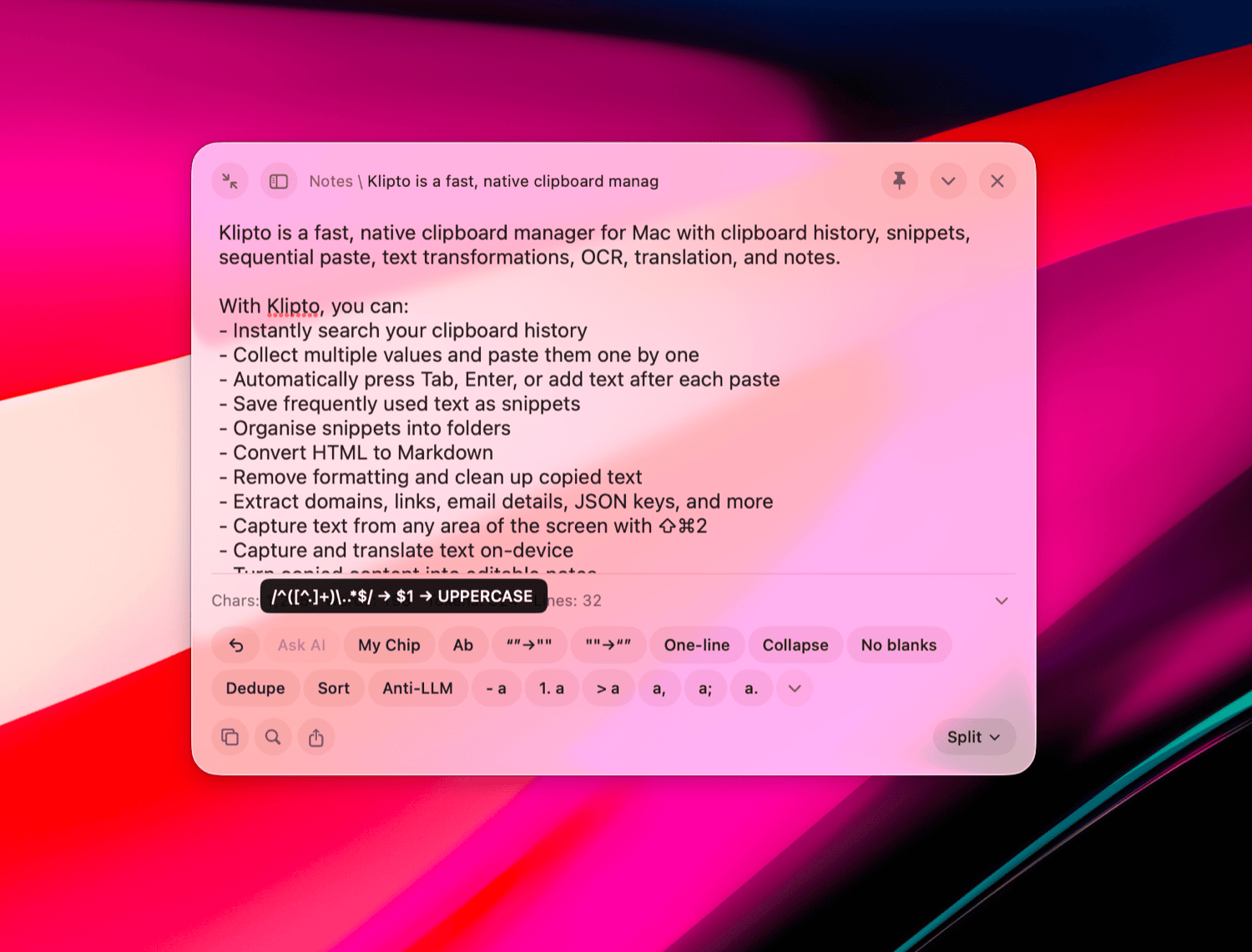
The chips, by content type
Text is the biggest set, shared by rich text, Markdown and notes.
- Case, eleven styles: UPPERCASE, lowercase, Sentence, Title, camelCase, snake_case, kebab-case, dot.case, CONSTANT_CASE, transliterate, URL slug. One exclusive group, so a tap replaces the last.
- Cleanup, twelve: Plain Text, One-line, Collapse, No spaces, No blanks, Dedupe, Sort, Un-HTML, Un-MD, No hidden, No emoji, Anti-LLM.
- Quotes, two: curly to straight, straight to typographic, with guillemets when the text is mostly Cyrillic.
- Per-line affixes, six: bullets, numbering,
>quoting, and a trailing comma, semicolon or full stop. - Encoding, three: URL percent, Base64, HTML entities.
- Counters: characters, words, lines and an estimated token count sit beside the row.
Rich text adds MD, which converts the source HTML to Markdown rather than the flattened text, so a heading stays a heading. Markdown goes the other way: its Plain Text chip drops the syntax and keeps the words.
Link, seven: Domain, Path, No params, Params, Decoded, Markdown, HTML.
Email, eight: Username, Name, Domain, mailto:, Markdown, HTML, HTML with a subject, and Mask.
Colour, ten: #HEX, HEX, RGB, RGBA, HSL, SwiftUI Color, Swift UIColor, NSColor, a CSS variable, a Tailwind class.
Number, six: 1 000 grouping, 1.5K short form, HEX, BIN, Bytes, No spaces.
Phone, nine: No spaces, Spaces, Parens, Dashes, No code, tel:, Markdown, HTML, Mask.
Card, three: Mask, Spaces, No spaces. The number is detected by its Luhn checksum, so a long order number does not turn into a card.
JSON, four: Pretty, Minify, Keys, Escape. HTML, four: Minify, Strip tags, List, MD list. CSS: Minify, plus the cleanups that are safe on code. Code gets the eight cleanups that do not touch case, plus the three encoders. Anti-LLM is kept away from all of them, because casual-ising prose would eat a color: red.
Encoded text is the one set built per item. A JWT gets Decode JWT, a percent-encoded URL gets URL decode, and Base64 and escaped JSON strings get their own. Only the decoder that fits is offered.
Choose which chips you see
Preferences → Preview & Transforms holds the list, under the heading Quick buttons. Types run down the left, and the switches for that type sit on the right. Switch off what you never tap and the row gets short.
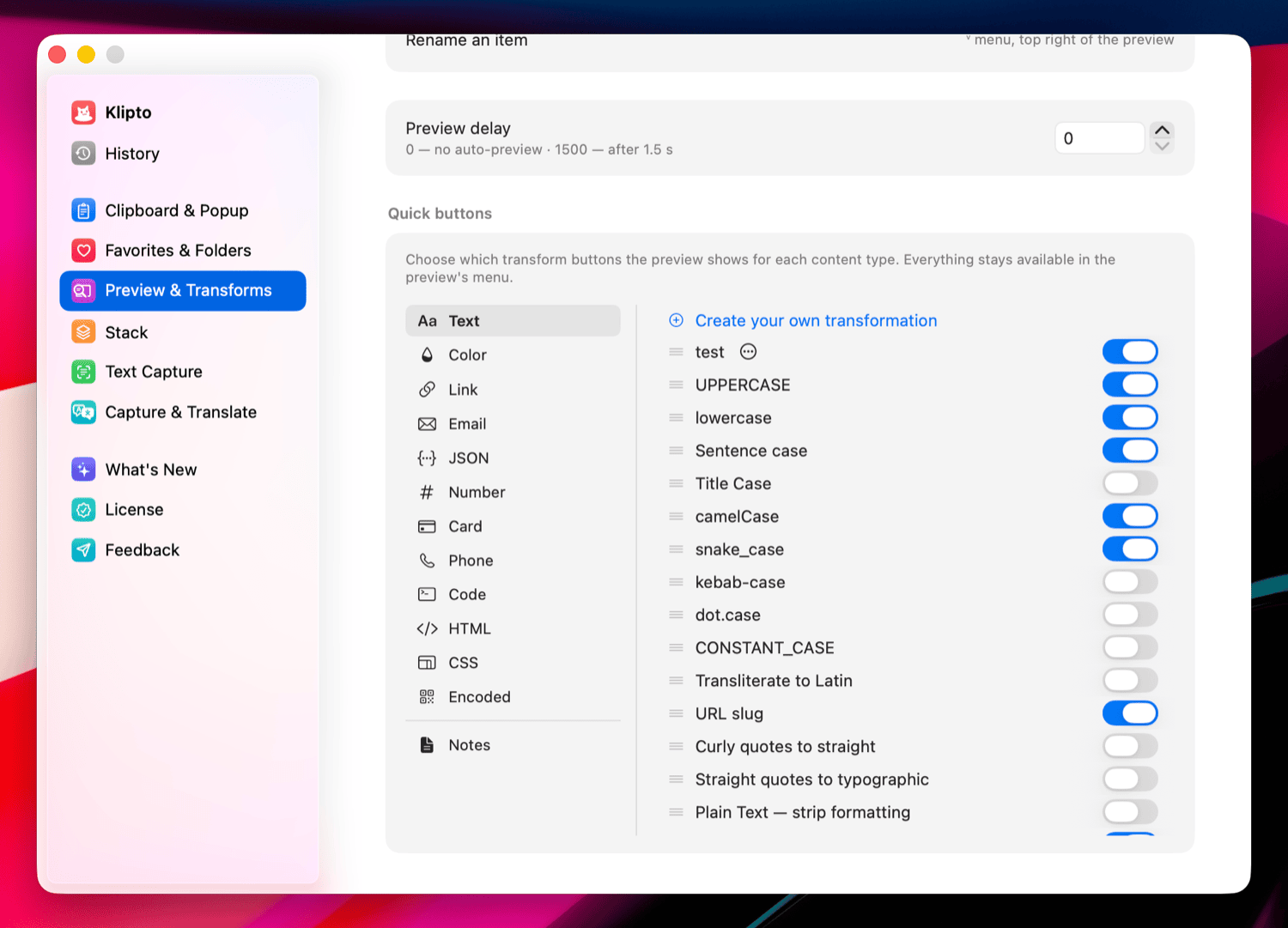
A type with no explicit selection shows everything it has. The moment you touch one switch, that type follows your list, which is why the first switch you flip appears to hide several chips at once.
Notes have their own bucket. Until you touch it, the note editor mirrors your Text selection; change one switch there and the two lists go their own way.
Put them in the order you use them
The same list drags. The order you set is the order of the row, and the order ⌘T walks through while the popup is open. The chip you reach for most belongs at the top.
The list keeps every chip of that type in one sequence, switched on or off. Turning one back on returns it to where it sat, so nothing jumps around.
Build your own chip
Custom transformations sit at the top of the same list. One is a name and a chain of steps that run top to bottom. A step is either a built-in action from that type's set, or a regex replace with its own pattern and replacement.
1. Open Preferences → Preview & Transforms and pick the content type the chip belongs to.
2. Click Create your own transformation at the top of the switch list.
3. Name it. The name is the chip label, so it is capped at fourteen characters.
4. Add step, and choose Regex replace or one of the built-ins, grouped as Case, Clean and Encode.
5. Fill in the sample in Try it. The whole chain runs against it as you type, so you see the result before you commit to it.
6. Save. A broken pattern turns its field red and holds the Save button until you fix it.
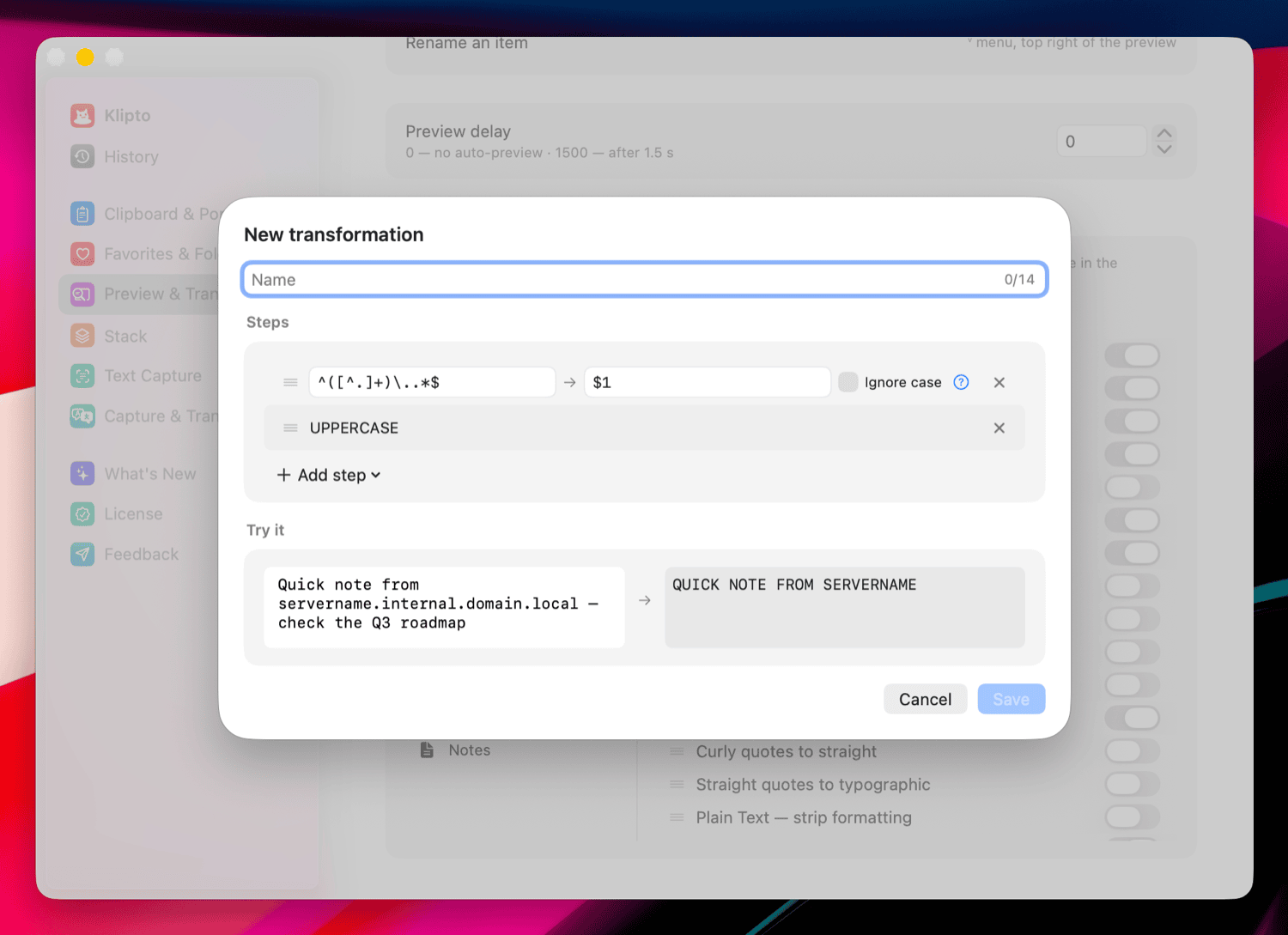
Order is the whole point of a chain. Regex first, then UPPERCASE, gives a shouty hostname in one tap. Un-HTML, then Collapse, then your own pattern, cleans a block pasted out of a web page. Drag a step to move it.
The finished chip lands at the top of that type's list, already switched on. It drags like the rest, ⌘T cycles it, and its ⋯ menu offers Edit and Delete. A transformation belongs to one type. Build it from Text and it shows on plain text, rich text, Markdown and notes; for the same thing on URLs, build it again from Link. Everything is stored on your Mac.
Three chains worth copying
Key points. Turns a paragraph someone sent you into a short list.
1. Regex \s*https?://\S+ to empty, which drops the link at the end.
2. Ask AI: Turn the text into a bulleted list of its key points.
3. lowercase.
Copy The Klipto blog reports that the new version adds custom regex-based transformations, as well as on-device AI transformations and on-device OCR. with a link under it, tap the chip, and what lands is:
- custom regex-based transformations
- on-device ai transformations
- on-device ocr
Standup line. For the notes you keep during the day.
1. Regex (?m)^\s*[-*•]\s+ to empty, which strips the bullets.
2. Ask AI: Rewrite these fragments as one sentence I can post as a standup update. Keep the facts, drop the adjectives.
Clean quote. For text dragged out of a web page.
1. Un-HTML, then Collapse, then No blanks.
2. Regex [“”‘’] to ", so the quotes stop fighting the code block you are pasting into.
3. Straight quotes to typographic, if the destination is prose rather than code.
The regex guide has the field reference and a table of patterns to paste into that step.
Ask AI, a prompt as a step
A step can carry a prompt instead of a pattern. You write the instruction in plain words, and it runs on the copied text as part of the same chain.
A regex step is exact and blind. It takes the hostname out of an FQDN, and it cannot be asked to shorten a paragraph or turn notes into a sentence. A prompt step covers the jobs where the rule is easier to say than to write.
It behaves like every other step. You type the instruction once, it sits where you dragged it, and the chain is still one chip with one tap. Clean the text with a built-in, run your regex over what is left, hand that to a prompt, press ⏎.
The same field arrives in the note editor as its own chip. Click Ask AI, say what should happen to the text in front of you, and the note is rewritten in place, with the usual undo.
Prompts that earn a chip of their own. A prompt is worth saving when you would otherwise type it again tomorrow.
Turn the text into a bulleted list of its key points.for the paragraph a colleague pasted into chat.Rewrite this as a short, neutral reply. No greeting, no sign-off.for the support answer you are about to send.Pull out every task and write each one as a line starting with a verb.for meeting notes.Summarise this in one sentence under 20 words.for a commit message or a ticket title.Fix the grammar and spelling. Change nothing else.for anything you wrote quickly in a second language.Explain what this code does in two sentences, for someone who did not write it.for the snippet you are about to paste into a review.Rewrite this as a numbered set of steps.for instructions buried in a paragraph.Keep only the parts that answer the question: what changed and when?for a long release note.
Two things are worth knowing. It runs on the Mac, because a clipboard manager that quietly posts what you copied to a server is not one I would run. And a prompt is the only step that does not answer the same way every time, so exact work stays with regex and built-ins.
Where the chips turn up
In the paste preview, on hover or with ⇧, and in the note editor for text. Tab walks the controls and Space presses the focused one. The chevron at the end of the row opens the full list for that type, including the chips you switched off, and ⌥ turns those rows into pin and unpin.