
The Figma plugins I use weekly

Three plugins and one habit that keeps a shared file from grinding to a halt.

Three Figma plugins stay installed on my account, and one habit does more for file speed than all three together. This is for designers who hand files to developers and then hear that the file takes a minute to open.

One warning before the list. Plugin names on the Figma community move around. Publishers rename, abandon and re-upload, and yesterday's top result is sometimes a clone of it. So each of these is described by what it does and what to search for, and you verify the publisher yourself before you install.

Raster to vector in one click

Image tracing turns a bitmap into editable vector paths. A logo that arrived as a PNG, a screenshot of a mark nobody can find the source file for, a scanned sketch. Search the community for "image trace" or "vectorize" and you will get several. I keep one installed and reach for it most weeks.
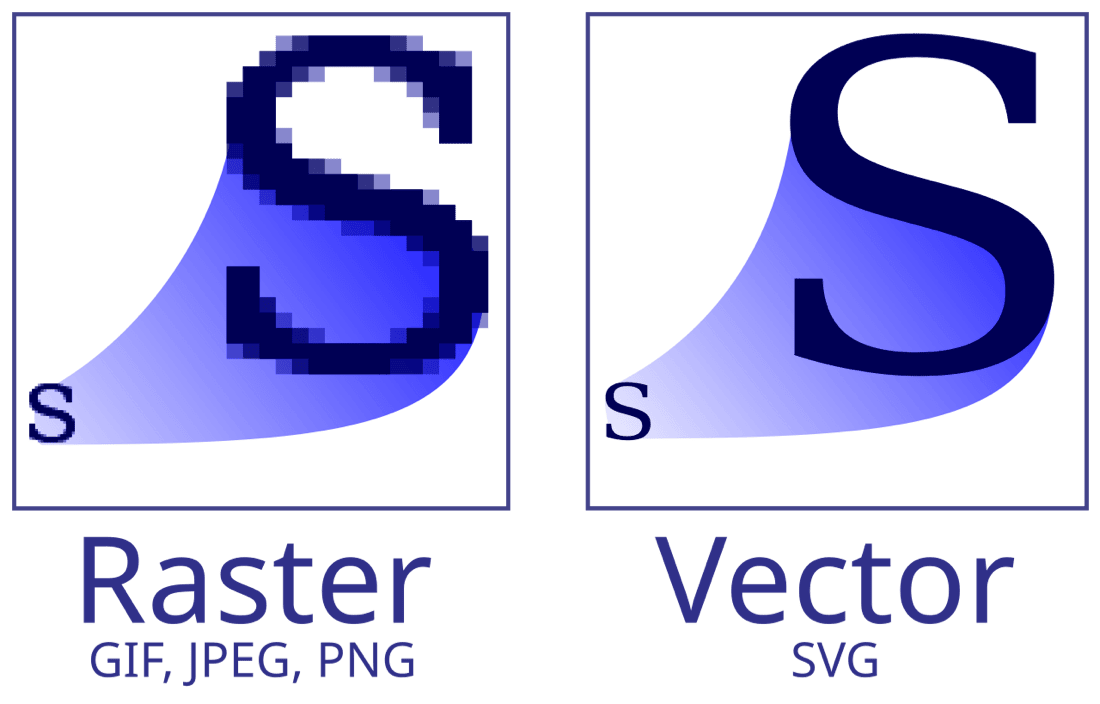
A letter S shown as a pixelated raster image and as smooth vector paths
Raster against vector at the same zoom. Image by Yug, modifications by Cfaerber et al., CC BY-SA 2.5, via Wikimedia Commons.

The result is never clean. Tracing produces far more nodes than a person would draw, curves land in slightly wrong places, and gradients come out as stacked shapes. On a two-colour logo the cleanup takes a minute. On a photograph it is not worth starting, because tracing continuous tone gives you hundreds of blobs and no usable structure.

What tracing is good for is getting something scalable in front of people today, while you chase the real source file. Treat the output as a draft that a developer should not receive. If the logo belongs to a client, ask for the original vector before you ship a traced copy of their brand.

The file is slow because it is full of screenshots

Bulk image compression is the one I recommend hardest. If a shared Figma file has started crawling, the cause is usually image weight: forty full-resolution screenshots pasted straight off a 5K display, each one a several-megabyte fill that nobody ever looks at above 400 pixels wide. Search for "compress" or "downsize" and pick a plugin that walks the whole page rather than one selection.

Compression is destructive, and that is the part people skip. The plugin replaces your image fills with smaller re-encodes, and Figma does not hold the untouched original for you afterwards. Duplicate the file first. Run the plugin on the copy, look at the largest images at 100%, and only then hand the copy over.

Devs notice this immediately. A file that opens in a few seconds instead of a minute changes how often they check your work, which changes how many spec questions land in your DMs.

Meet Klipto

Klipto helps before Figma opens.

Collect several assets in the Stack, then drag them into Figma one by one. Text and images, no re-copying.

See what Klipto does

Pasting an image Figma does not want

Large-image paste solves a small annoyance that eats ten minutes a month. Drop a very large image into Figma directly and it can fail, hang, or come back visibly softer than the file you started with, because Figma has an upper bound on image dimensions and quietly downscales past it. There are plugins that take the file, slice it, and place the pieces so you keep the detail. Search for "large image" or "big image".

It is a workaround, and you should know what for. If you need a 12,000 pixel screenshot legible inside a design file, the honest fix is usually to crop to the part under discussion. I use the plugin when the whole thing genuinely matters, and crop the rest of the time.

The habit worth more than all three

Keep references out of the file developers open. Put them in a separate Figma file, or on their own page that you delete before handoff. A design file carrying a page of competitor screenshots is carrying that weight for everyone who opens it, forever, including the people who will never look at that page.

I watched a designer friend work through a reference set once. She copied twenty images, then rebuilt them in Figma one by one, switching windows for every single one. That is the workflow most plugins do not touch, because the slow part happens before Figma is even in front of you. Collect first, place second, and the plugin list stops mattering so much.

The second half of the habit is deleting. Unused components, old variants, five versions of a card nobody chose. Figma has no aggressive garbage collection you can rely on, so the pruning is manual and it is worth an hour before a handoff.

Where plugins stop helping

Plugins run inside Figma and inherit its limits. A plugin scanning several thousand layers is slow, sometimes slow enough to look frozen, and on a truly heavy file it can give up. If your file is slow because it holds one enormous page with 8,000 layers, no plugin fixes the structure. Splitting into pages does.

There is a permission question too. A plugin you run can read the contents of the file you run it in. For personal work that is a shrug. For a client file under NDA it deserves thirty seconds of thought: check the publisher, check whether the plugin sends anything to a server, and prefer ones that state plainly that processing happens locally. Popularity is not proof, since clones ride on the original's name.

And some of what plugins do, Figma keeps absorbing into the product. Features arrive, plugins become redundant, and nobody sends you a notice. Every few months it is worth checking whether the thing you installed two years ago is now a menu item.

Frequently asked questions

Why is my Figma file so slow to open?

Almost always image weight, then layer count. Full-resolution screenshots pasted as fills are the usual cause, so run a bulk compression plugin on a duplicate of the file and check the biggest images afterwards.

Are Figma plugins free?

Most community plugins are free, and some have paid tiers or a paid pro version. Pricing changes often enough that the plugin's own community page is the only figure worth trusting.

Can a Figma plugin read my design file?

Yes, a plugin you run has access to the file's contents. For confidential work, check the publisher and whether the plugin processes locally or sends data to a server.

Is tracing an image good enough to ship?

Rarely. Tracing gets you a scalable draft in seconds and leaves messy paths behind. For a client's logo, get the original vector before anything goes to production.

Get Klipto for Mac

Free for 14 days · no card, no account required · 5 MB

Download Klipto