
Tiny Mac utilities worth installing

The Mac has a whole world of one-person tools that do one thing and vanish. These are the ones I use.

The Mac has a whole category of tools written by one person, each doing a single thing and then getting out of the way. Six of them are permanently installed on my machine. This is the software I like most, and it is what I am trying to build myself.

None of these needs a manual. That is the test I apply before installing anything small: if the settings window has tabs, it is no longer a tiny utility.

KeyCastr, for showing what you press

KeyCastr draws your keystrokes on screen. Free and open source at github.com/keycastr/keycastr. Every shortcut you hit appears in a corner overlay, with a couple of visual styles and control over position and fade. Half the demo clips I record would be nonsense without it, because a video of a keyboard-driven app shows a list changing for no visible reason.
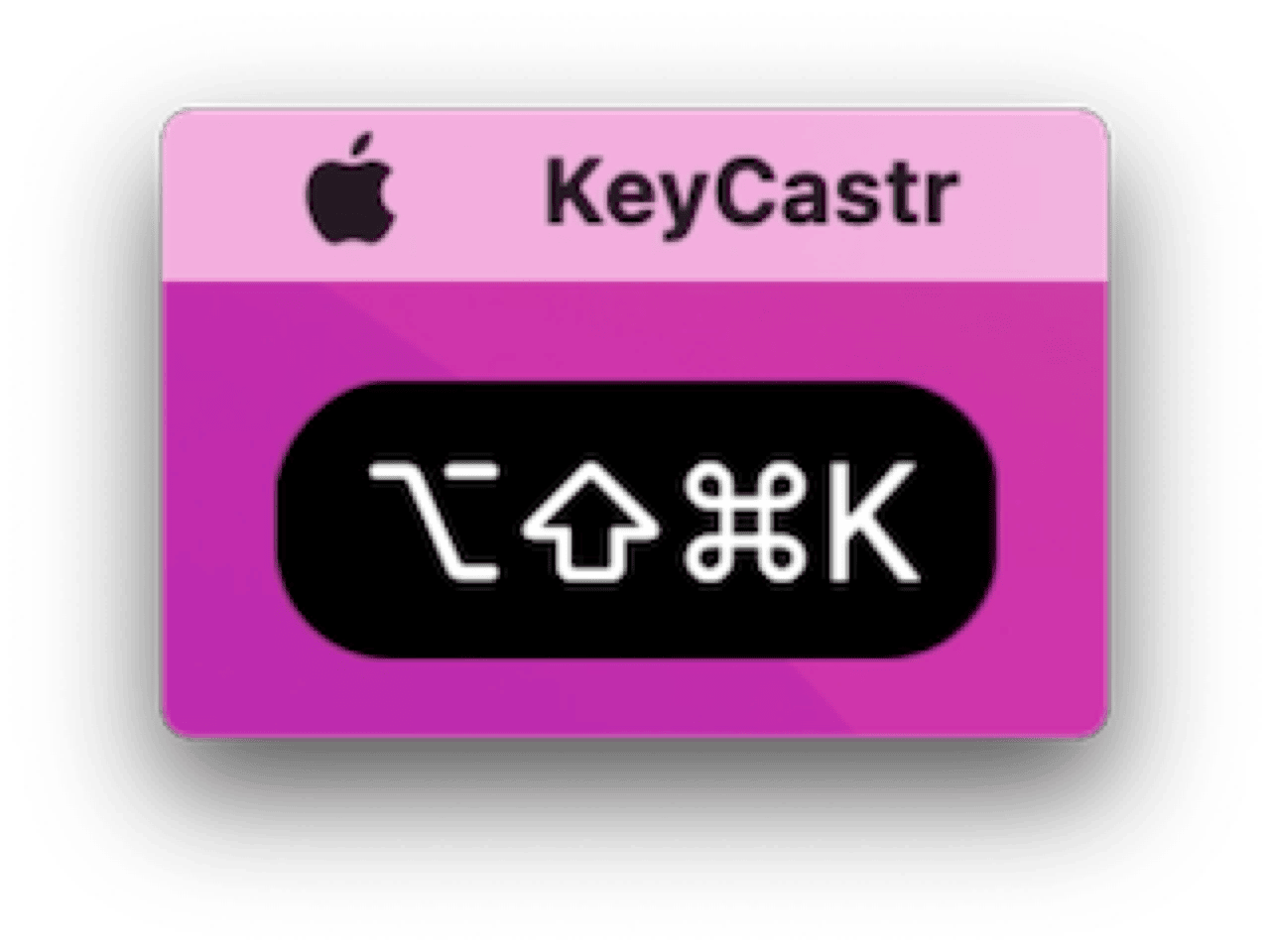
It is also useful when you are teaching someone. Screen sharing hides your hands, so "press option-command-V" lands better when the modifiers appear as you say them.

Two things to know. KeyCastr needs Accessibility approval, since reading global key presses is exactly the permission macOS guards. And it displays everything, so quit it before you type a password on a call. There is a per-app exclusion setting, and it is worth configuring before you need it rather than after.

The clip shows a utility with no window of its own. A shortcut opens it over whatever app has focus, the work happens in the panel, and it closes. Most tools on this page share that shape, which is why they get judged on how few keystrokes they cost.

The practical detail nobody mentions in reviews is launch at login. A tool you have to start by hand gets used for a week and then forgotten, so the first thing I check in any small app is whether it can start itself.

Numi, a calculator that reads sentences

Numi does arithmetic written the way you would say it. Type "20% of 300 plus 5 EUR in USD" and it answers. The line stays editable. It keeps a text document rather than a keypad, so a rough estimate stays visible and you change one number to see the rest move. It comes from numi.app, and it is also in Setapp.
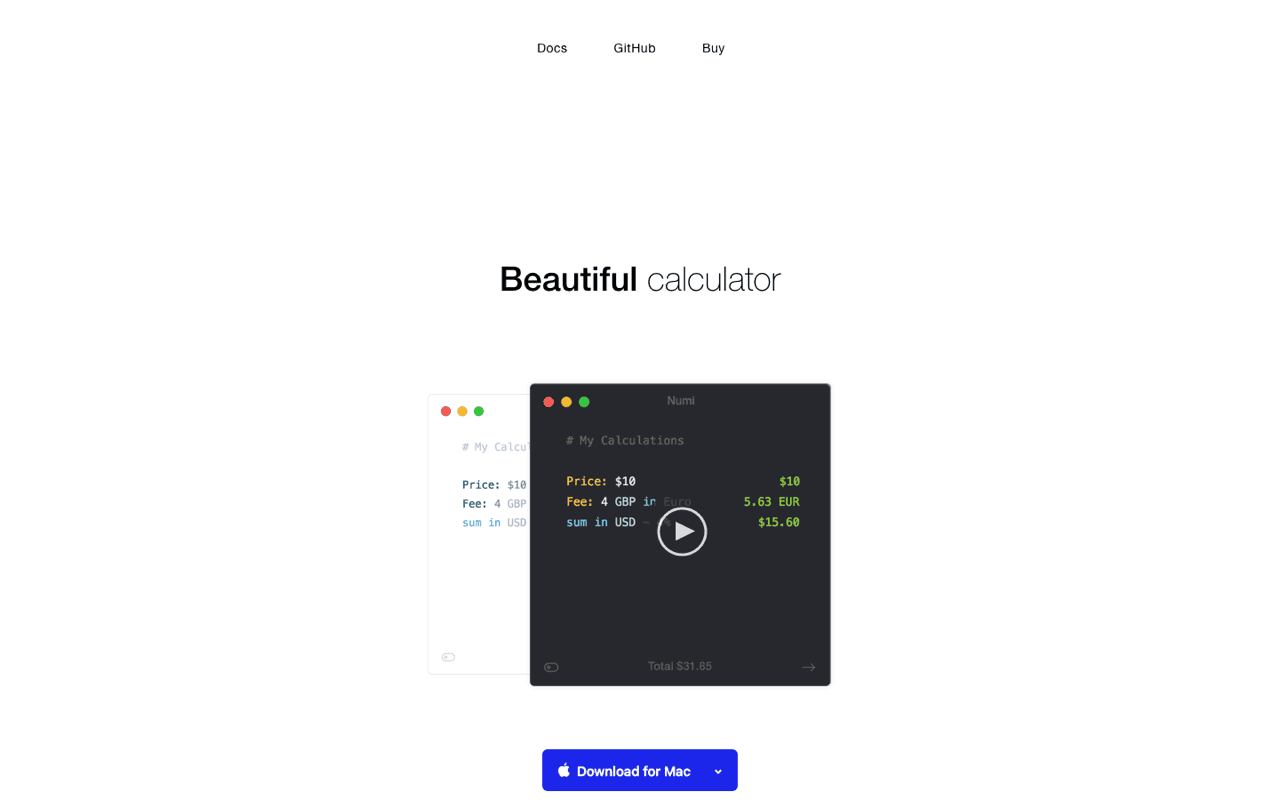
This is the app I open instead of Spotlight for anything with two steps in it. Spotlight handles one sum. It does not handle a column of them where the third line depends on the first.

The free download limits how many notes you keep. Activating unlocks unlimited notes plus iCloud sync, and the price is on their buy page rather than here, because I am not going to quote a figure I have not re-checked today. Currency conversion also needs a network connection, which matters if you work offline.

Homerow, for clicking without a mouse

Homerow puts a letter label on everything clickable and lets you type it. Press its shortcut and labels appear over buttons, links and menu items. Type a label, it clicks. It works in native apps and inside Chrome, Safari, VS Code, Slack and Notion. From homerow.app, a one-time purchase, free to try with a reminder every 50 activations.
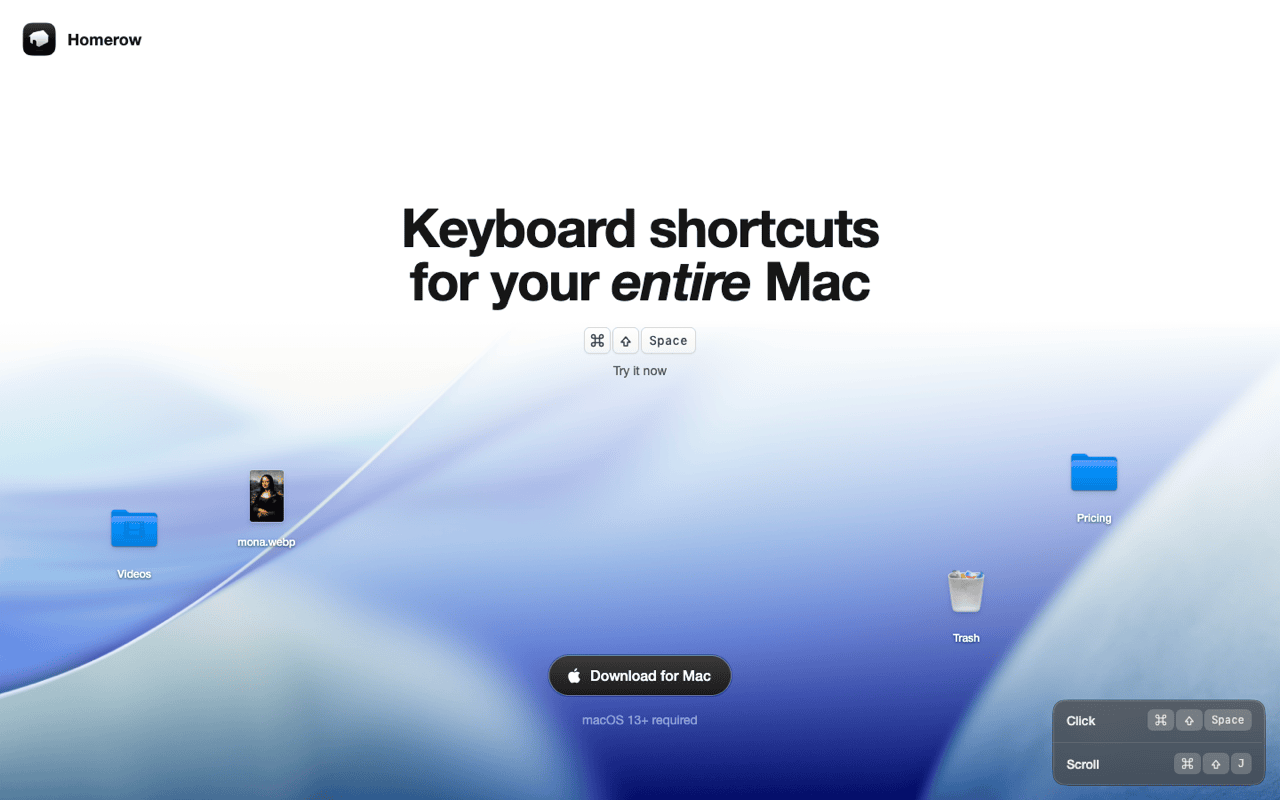
The learning curve is real for about two days. After that, moving to a sidebar button without touching the trackpad becomes automatic, and the trackpad starts to feel slow for interface work.

Its accuracy depends on the app underneath. Homerow reads the Accessibility API, so an app that labels its interface properly gets clean labels everywhere, and a canvas-drawn or badly labelled app gets very few. Design tools are the usual disappointment. Nothing Homerow can fix from outside.
Three that sit there and never ask for attention

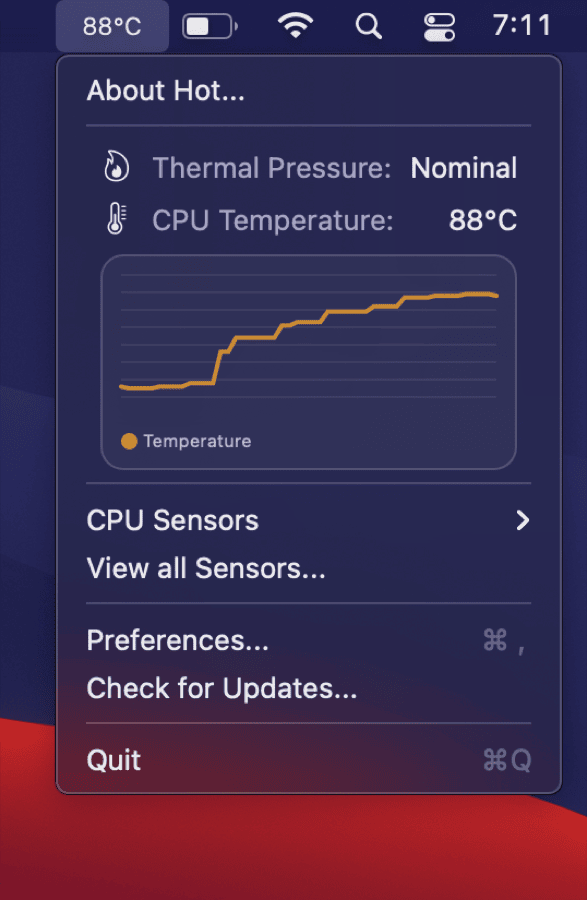
Hot shows whether heat is holding your CPU back, from github.com/macmade/Hot, MIT licensed. Intel Macs get a temperature and a speed-limit percentage, Apple Silicon gets a thermal pressure state. It reminded me that my MacBook was overdue for a dust blowout. It reports and nothing more, so pair it with a full monitor if you want graphs.

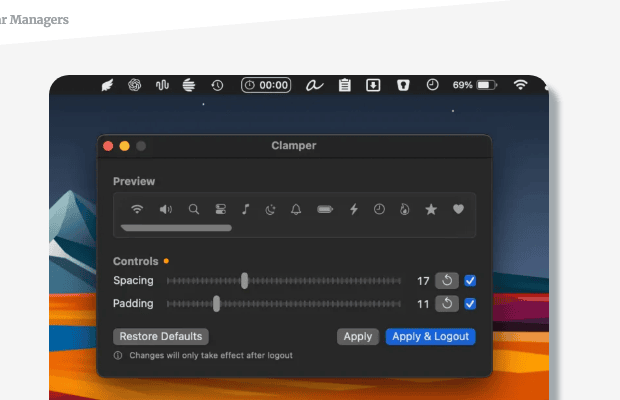
Clamper shrinks the spacing and padding between menu bar icons so more of them fit, with a live preview and haptics while you drag the slider. Free and MIT at github.com/validatedev/Clamper. Making room is all it does, so a crowded bar still needs a manager to hide things.

Second Clock by Sindre Sorhus puts one other timezone in the menu bar. Free on the Mac App Store, no ads, no in-app purchases, macOS 15.2 or later. I forget it is an app until I need to know whether it is a reasonable hour where somebody lives. It shows a single extra clock, so a four-city setup needs something bigger.

Where one-person software gets risky

The maintenance question is the honest one, and I say this as one of those developers. A tool by one person can stop when that person's life changes. Open source softens it: Hot, KeyCastr and Clamper can be forked and rebuilt by anyone, and Mac history is full of exactly that happening. Closed tools give you no such route, which is worth remembering when you buy one.

Permissions are the second cost. Accessibility approval lets an app read and control other apps, and both KeyCastr and Homerow need it. That is not a reason to avoid them. It is a reason to install from the developer's own site or repository, and to check that the build is signed and notarised. Open the list in System Settings under Privacy & Security twice a year. Remove whatever you no longer recognise.

The third one is accumulation. Every small app is a background process holding a slice of memory and a permission. Six is fine. Twenty is a Mac that feels slower without any single culprit, and the only fix is deleting things. My rule is that anything I have not consciously used in a month comes off.

Frequently asked questions

Are small Mac utilities safe?

The open-source ones let you read the code and check the build, which is more than most software offers. Install from the project's GitHub releases, Homebrew, or the developer's own site, and check the app is signed and notarised.

Why does a keyboard utility need Accessibility permission?

Reading global key presses or clicking another app's buttons both go through the Accessibility API, and macOS requires per-app approval for it. Anything that promises those features without asking would be lying.

What is the best free Mac calculator with units?

Numi is the one I use, and the free download covers everyday work with a cap on saved notes. Spotlight handles single sums perfectly well if you never need a second line.

Do these work on Apple Silicon?

All six run natively. Hot behaves differently there by design, reporting thermal pressure rather than a temperature in degrees.

Get Klipto for Mac

Free for 14 days · no card, no account required · 5 MB

Download Klipto